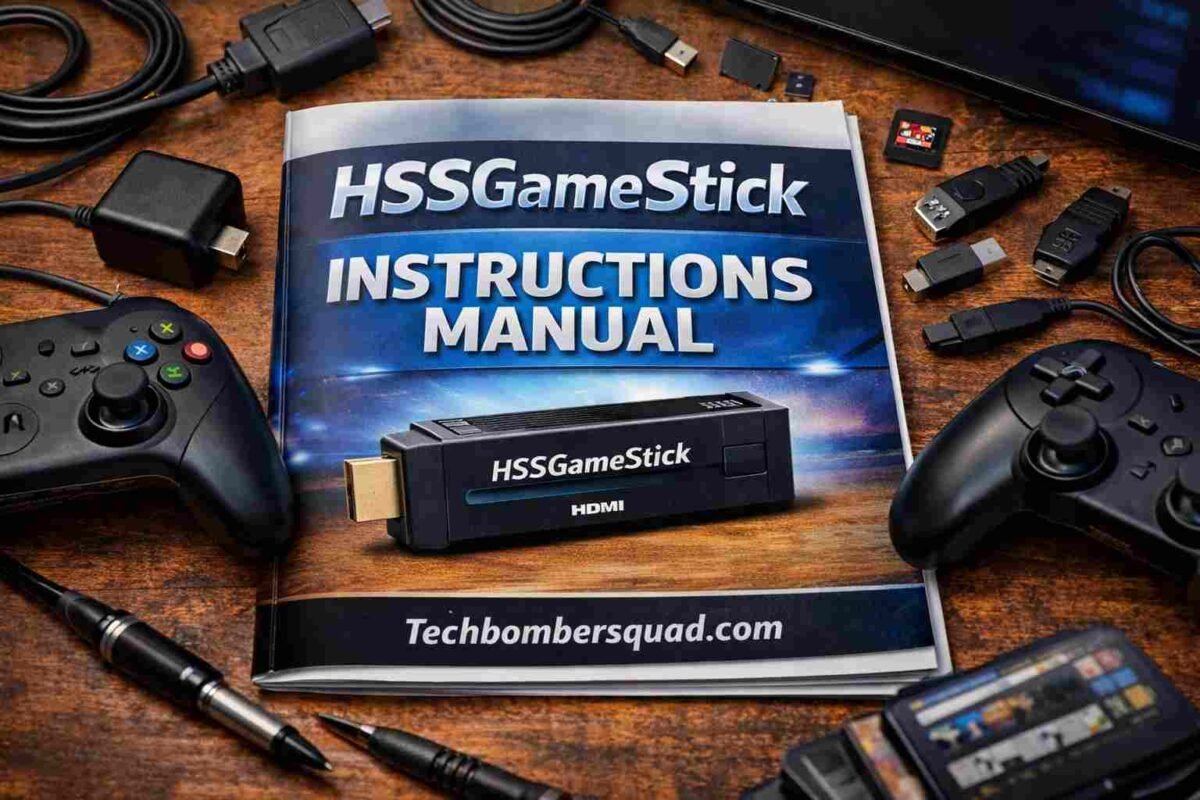
The HSSGameStick has emerged as a favorite among retro gaming enthusiasts who want to relive the 80s and 90s without the clutter of old consoles. This compact HDMI device packs thousands of classic titles from platforms like the NES, Sega Genesis, and even the PlayStation 1. However, to get the most out of this portable powerhouse, you need to understand the nuances of its setup and internal settings. This instructions manual is designed to be your complete companion, covering everything from the first plug-in to advanced emulator tweaks.
Setting up the HSSGameStick is remarkably simple, but there are small details that can make or break your experience. Many users plug the device into a TV’s USB port for power, but for the most stable performance, using a dedicated 5V wall adapter is often better. This prevents the “screen flickering” or “system crashes” that occur when the stick doesn’t receive enough current during intense gameplay.
Getting Started: The Initial Connection
Before you dive into the world of Contra or Mario, you need to ensure the hardware is correctly assembled. Start by plugging the HDMI stick directly into an open HDMI port on your TV. If your TV is mounted close to the wall, use the provided HDMI extension cable to prevent bending the stick. Next, insert the 2.4G wireless receiver into the USB port on the side of the stick. This receiver is what allows your controllers to communicate with the console.
Powering the device is the final step of the hardware setup. Connect the Micro-USB or Type-C cable to the stick and plug the other end into a power source. Once the LED light on the stick glows, switch your TV to the correct HDMI input. You should see the HSSGameStick logo followed by the main menu. If you see a “No Signal” message, double-check that the stick is pushed all the way into the HDMI port.
Navigating the Menu and Game Library
The user interface of the HSSGameStick is designed for ease of use. You will typically see several tabs at the top of the screen: List, Class, History, Collect, and Search. The “List” tab shows every game available on your MicroSD card, while “Class” categorizes them by their original console. This makes it much easier to find games from a specific era, such as 16-bit Sega titles or 8-bit Nintendo classics.
One of the most useful features is the “Search” function. Instead of scrolling through 10,000 titles, you can simply type the name of the game you want to play. If you find a game you love, press the R2 or a specific “Collect” button on your controller to add it to your favorites. This saves you time in the future, as you won’t have to search for your favorite titles every time you turn on the stick.
How to Save and Load Games Like a Pro
The biggest advantage of modern retro consoles is the “Save State” feature. Unlike old consoles where you had to rely on passwords or long gameplay sessions, the HSSGameStick allows you to save your progress at any exact moment. To do this, press the Select + Start buttons simultaneously while you are inside a game. This will bring up the emulator menu.
From this menu, select “Save State.” You will usually have several slots (0-9) to choose from. Once saved, you can turn off the console and come back later. When you want to continue, simply return to the same game, open the menu with Select + Start, and choose “Load State.” This feature is a lifesaver for notoriously difficult games that didn’t originally have a save function.
Troubleshooting Controller and Connection Issues
If your controllers are not responding, the first thing to check is the batteries. Most HSSGameStick controllers require two AAA batteries. If the red light on the controller is blinking or dim, it means the power is low. Another common issue is signal interference. If your TV is very large, it might block the signal between the stick and the controllers. Using the HDMI extension cable to bring the stick out from behind the TV can solve this lag immediately.
Sometimes, the game library might appear empty. This usually happens if the MicroSD card has vibrated loose during shipping or handling. Turn off the power, remove the MicroSD card from the side of the stick, and re-insert it firmly. When you turn the power back on, the system should re-scan the card and display the games correctly.
Expanding Your Library: Adding New Games
While the HSSGameStick comes pre-loaded with thousands of games, you might find that your favorite obscure title is missing. You can manually add games by connecting the MicroSD card to your computer using a card reader. Inside the card, you will find a folder named “roms” with subfolders for each console (e.g., fc, sfc, md, gba).
Simply download the ROM file for the game you want and paste it into the corresponding folder. It is important to keep the file format correct—for example, NES games should be .nes files. Once you put the card back into the stick, use the “Search” or “List” function to find your newly added game. Be careful not to delete any system files on the card, as this could prevent the stick from booting up.
You Can Also Read: EuroGamersOnline: Top Gadgets for Gamers in 2026
FAQs
How do I exit a game and return to the main menu?
To exit any game on the HSSGameStick, press the Select and Start buttons at the same time. This will open the emulator’s system menu. From there, use the D-pad to highlight “Exit” or “Quit” and press the A button. This will safely close the game and take you back to the main game selection screen without needing to restart the entire stick.
Can I play PlayStation 1 (PS1) games on the HSSGameStick?
Yes, most HSSGameStick models support PS1 emulation. However, because PS1 games are much larger than 8-bit games, they require more processing power. If you find that a PS1 game is lagging, try going into the “System Settings” and adjusting the “Video Frame Skip” option. Also, ensure you are using a high-quality power adapter to provide the stick with enough energy for high-end emulation.
What should I do if the screen goes green or flickers?
A green screen or flickering is usually a sign of an unsupported resolution setting. If you have recently changed the display settings and the screen went blank, you may need to reset the device. Avoid changing the internal resolution settings to “4K” unless your stick specifically supports it, as many sticks are optimized for 1080p and can crash if pushed beyond their hardware limits.
Why are some games running in slow motion?
Slow-motion gameplay is typically a result of “overheating” or a “low power supply.” If the stick has been running for several hours, it may throttle its performance to cool down. Try unplugging it for 5 minutes. Additionally, ensure the USB power cable is plugged into a wall outlet rather than the TV’s USB port, as TV ports often provide less than the required 1 Amp of current.
About the Author